
Requesting and approving absences
Vacation, home office, educational leave and the other absence types run as a request in Klokk: the person requests, someone who may approve decides, and approved absences act on the target, the time account and the vacation account. Sick leave needs no approval — it has its own way.
Requesting
Section titled “Requesting”-
Under Requests, click Request absence.
-
Choose the type. Offered are the types your company has switched on.
-
Choose from and to. Klokk shows at once how many working days that is — weekends, public holidays and the company’s days off do not count. For vacation it also shows how many vacation days you have left.
-
Optional: Half Day (morning or afternoon, single days only), a Comment and a substitute.
-
Submit. The request shows under Requests as pending, and whoever may decide is notified.
Changing and withdrawing
Section titled “Changing and withdrawing”- While a request is pending, you can edit it or withdraw it with Cancel.
- Once approved, request its cancellation; the absence stays until that is decided.
- In a closed month nothing changes any more.
Deciding
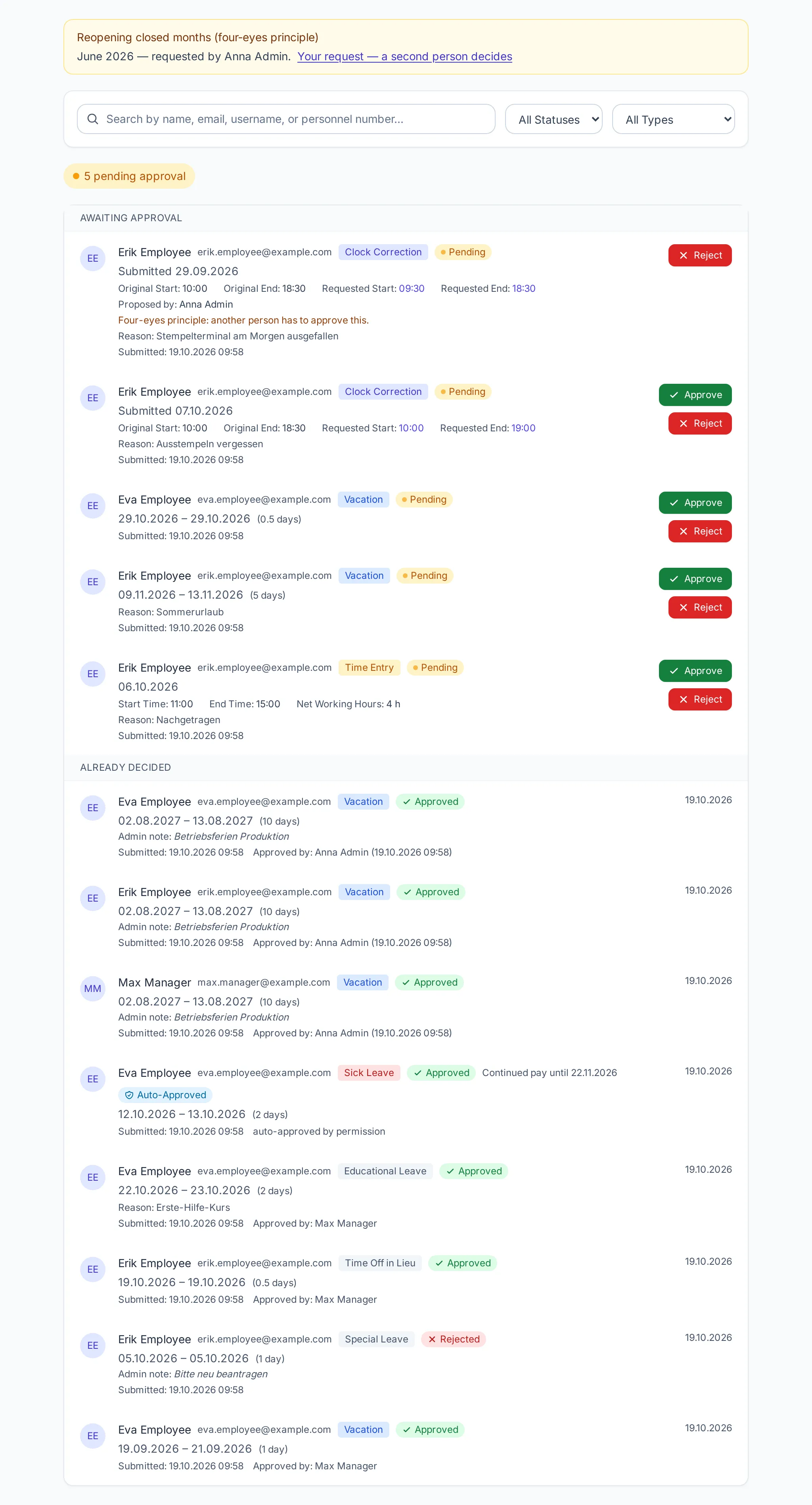
Section titled “Deciding”Whoever decides requests finds them under Admin → Requests — absences, time corrections, entries added afterwards and cancellations in one list. Pending requests are at the top, the decided ones below; search and filters by status and type narrow the list.
-
Check the request: period, days, comment, substitute (with a hint if they are away too).
-
Approve or Reject — optionally with a note the person sees.
-
The person learns the decision by e-mail and, when switched on, by push.
Who may decide
Section titled “Who may decide”- the managers of the person’s department,
- the company’s admins and the super admins,
- never the person themselves.
The managers of the department are notified first, without them the admins, otherwise the super admins — see notifications.
Auto-approval
Section titled “Auto-approval”With the permission Auto-approve: absences (under Admin → Users, or forced for everyone by the company) a person’s requests count as approved at once. They still show under Admin → Requests — for reference, marked “Auto-Approved”. More in auto-approval.
What an approved absence does
Section titled “What an approved absence does”- It shows in the time overview, on the dashboard, in the own calendar under Requests and in the team calendar.
- Depending on the type, the target is dropped and vacation days are used — see absence types.
- Working days without an entry and without a requested or approved absence are booked at night as unexcused absence; a pending request prevents that.