
Clocking in and recording time
Working time in Klokk comes from clocking: whoever starts clocks in, whoever stops clocks out. Klokk turns this into time entries, compares them with the target and keeps the time account.
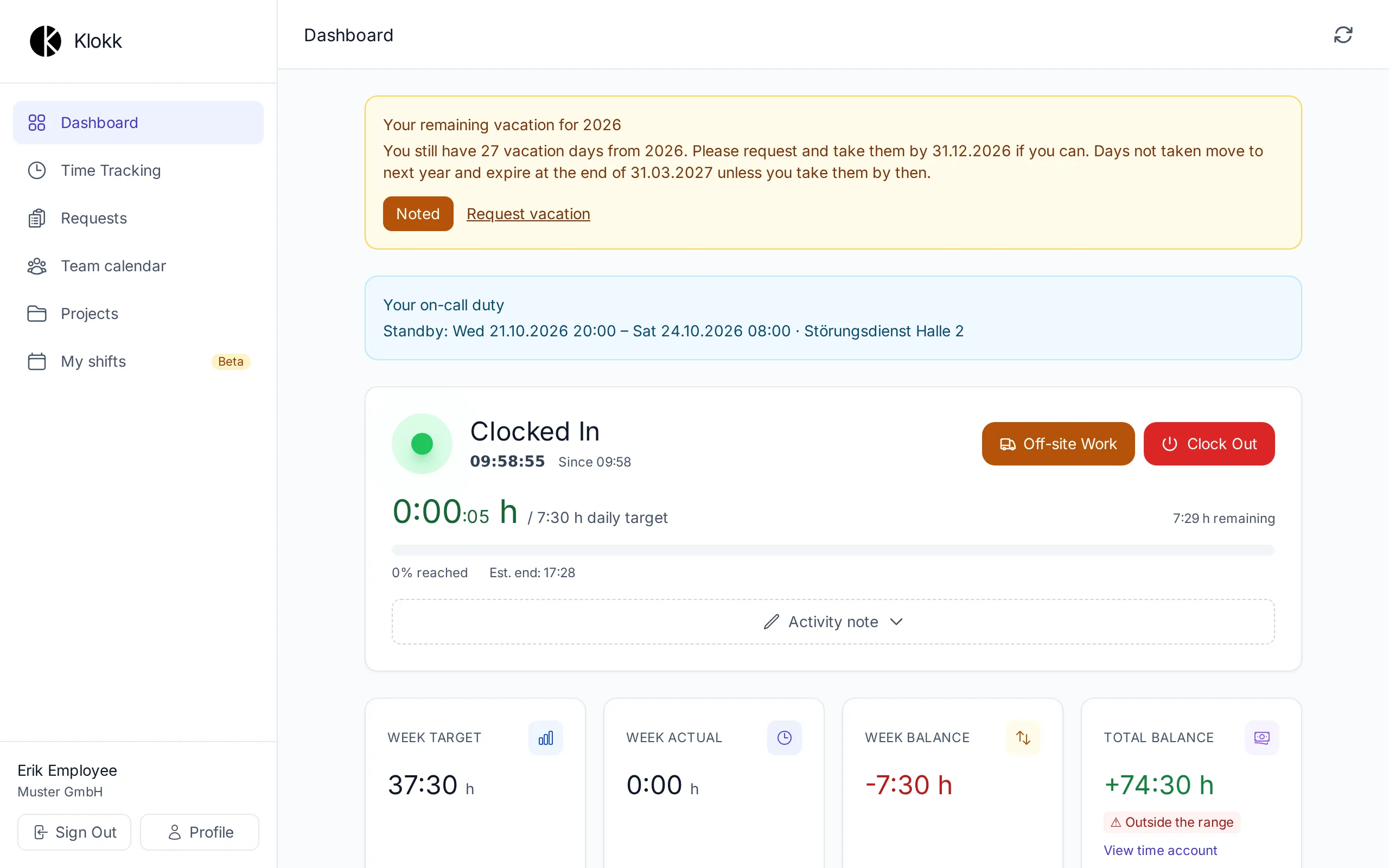
The clock on the dashboard
Section titled “The clock on the dashboard”After signing in, the dashboard shows the clock at the top:
- the state: Clocked In (since when) or Clocked Out,
- the daily target and the weekly target with what is still remaining, and while time is running the estimated end of the day,
- the buttons Clock In / Clock Out and Off-site Work.
Once the daily target is reached, the clock says Daily target reached!; the same goes for the week.
Clocking in and out
Section titled “Clocking in and out”-
At the start of work, click Clock In. The entry starts with the default work location from your profile (for example office or home office).
-
At the end of work, click Clock Out. The entry ends and Klokk works out the net working time.
-
Whoever leaves in between and comes back clocks in again — each stretch becomes an entry of its own.
Breaks
Section titled “Breaks”Breaks are recorded in one of two ways:
- Clock out and in again — the time in between is a break.
- Automatic break detection, when an admin has switched it on in your work schedule: at clock-out Klokk adds the statutory break (30 minutes for more than 6 hours of work a day, 45 minutes for more than 9 hours) — only as far as gaps between your entries and recorded breaks do not cover it already. Such entries are marked “Auto-break” in exports.
If a break is too short, Klokk points it out to you, and the admins’ time analysis lists it — see Working Time Act.
Off-site work
Section titled “Off-site work”For work away from the usual place — at a customer’s, on a business trip — start Off-site Work instead of clocking in, and end it with End Off-site Work. On the way, choose under Right now whether you are working on site or travelling, and how. It decides how the time counts: see Travel time on business trips.
Projects
Section titled “Projects”When project time tracking is switched on for your company, you start and stop project time right in the clock. Working time keeps running as usual.
Below the clock there is a notes field (when the company has switched it on). Depending on the setting, a note belongs to the current entry or to the whole day. It is saved automatically; earlier versions can be restored from the history.
Viewing and adding times
Section titled “Viewing and adding times”Under Time Tracking you see your entries by week, month or year, with target, actual and balance.
- Add Entry: for forgotten times. Whether it applies at once or goes for approval depends on your permissions and the edit window.
- Request Time Correction: for a wrong start, end or break. The correction goes to your managers; you see it under Requests.
- Export: your times as CSV, calendar file or monthly record (PDF).
Frequently asked questions
Section titled “Frequently asked questions”I forgot to clock out. Clock out as soon as you notice, and request a correction of the end under Time Tracking.
I clocked in twice. That cannot happen: while an entry is running, the clock only offers Clock Out.
Why can I no longer clock in? After the last working day of an ended employment, clocking is no longer possible; the clock then names the date.