
Team calendar
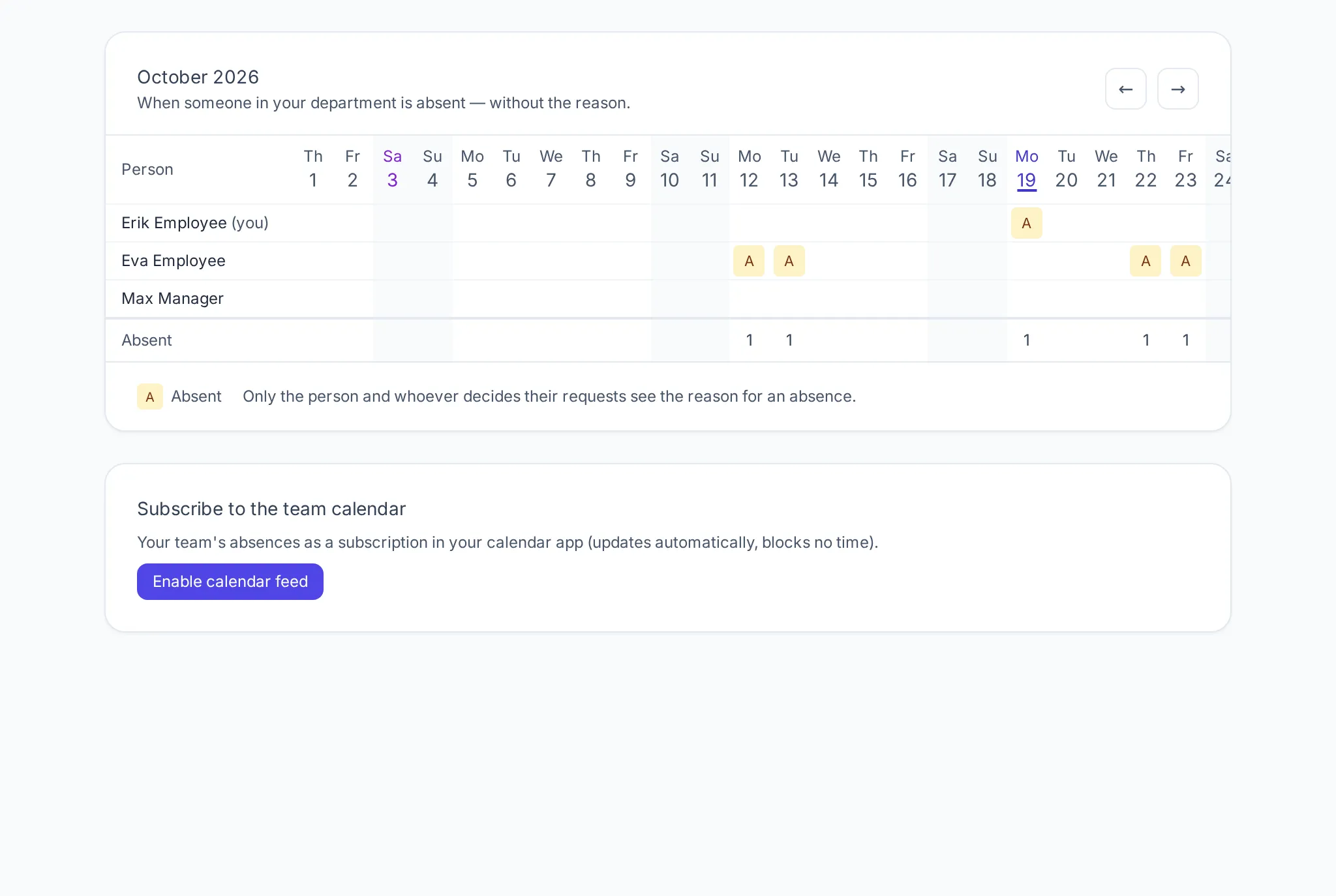
The team calendar shows for one month who is away when — one row per person, one column per day. Vacations can be coordinated without asking around.
Who sees what
Section titled “Who sees what”| Employees | Approvers (managers, admins) | |
|---|---|---|
| Access | when the company has switched on Team calendar for employees | always |
| People | colleagues of their own department | the people whose requests they decide; admins choose the department |
| Shown | only “absent” | the kind of absence and requested absences |
| Home office, business trip | not shown | shown |
Super admins set Team calendar for employees under Admin → Companies → (company).
Reading the calendar
Section titled “Reading the calendar”- Weekends and public holidays are shaded; the company’s days off show with their name.
- Your own row is marked “(you)”, today is highlighted.
- The Absent row at the bottom counts how many are away each day.
- The arrows switch the month.
Legend for approvers: V vacation, S sick leave, R home office or business trip, A other absence; requested absences are marked “requested”. Employees see only A (absent).
Subscribing in a calendar app
Section titled “Subscribing in a calendar app”-
Under Subscribe to the team calendar, click Enable calendar feed.
-
Copy the Team calendar link and add it in your calendar app as a subscription (iCalendar, “add calendar from URL”).
-
The app refreshes the subscription by itself. The events do not block appointments.
Whoever has the link sees what you see in the team calendar. If it fell into the wrong hands, renew it — the old one stops working.